Accounting Sync for Xero
Setup & configuration guide · Adaptive Pace
How to use
A step-by-step walkthrough of the Settings panel: connecting your accounts, setting up each sync, and configuring live sync, schedules, invoices and bills. Set the syncs up in the order below, because invoices and bills link back to your contacts and products.
What this does
Your monday boards and your Xero organisation, kept in step — so the same figures don't get typed twice.
- Contacts stay in step between a monday board and Xero, in whichever direction you choose.
- Raise Xero invoices from the board you already work in — a monday automation creates the draft when an item reaches the status you pick.
- Payment status comes back automatically, so the board shows Draft / Awaiting payment / Partially paid / Overdue / Paid without anyone checking Xero.
- See what you're owed without leaving monday — a dashboard with outstanding, overdue and aged balances.
- Supplier bills mirrored onto a board, one item per bill, so approvals and chasing happen where the work happens.
- Products & Services matched by code, so invoice lines reference the right Xero item.
Contacts, invoices and bills update within seconds of a change in Xero once live sync is on; everything also re-checks on a daily schedule so nothing is missed. Exactly what updates when is set out in How fresh is my data? — and there's a summary of your trial and plan at the end.
Who can do this: only monday admins can configure syncs. Other members see the cards in read-only form. Each install connects to one Xero organisation.
Set up in this order: Contacts and Products & Services first, then Invoices, then Bills. An invoice board links each customer to your Contacts board and each line's product to your Products board (via connect columns), so both must exist first. A bill board links each supplier to your Contacts board, so Contacts must exist before Bills.
Part 1: Connect your accounts
One-time setup. The panel shows a three-step progress strip (Connect monday, Connect Xero, Create a sync) until you're fully set up.
Connect monday and Xero
Open the app's Settings panel. Under Connections you'll see the status of both platforms. Connect them in order; Xero only becomes available once monday is connected.
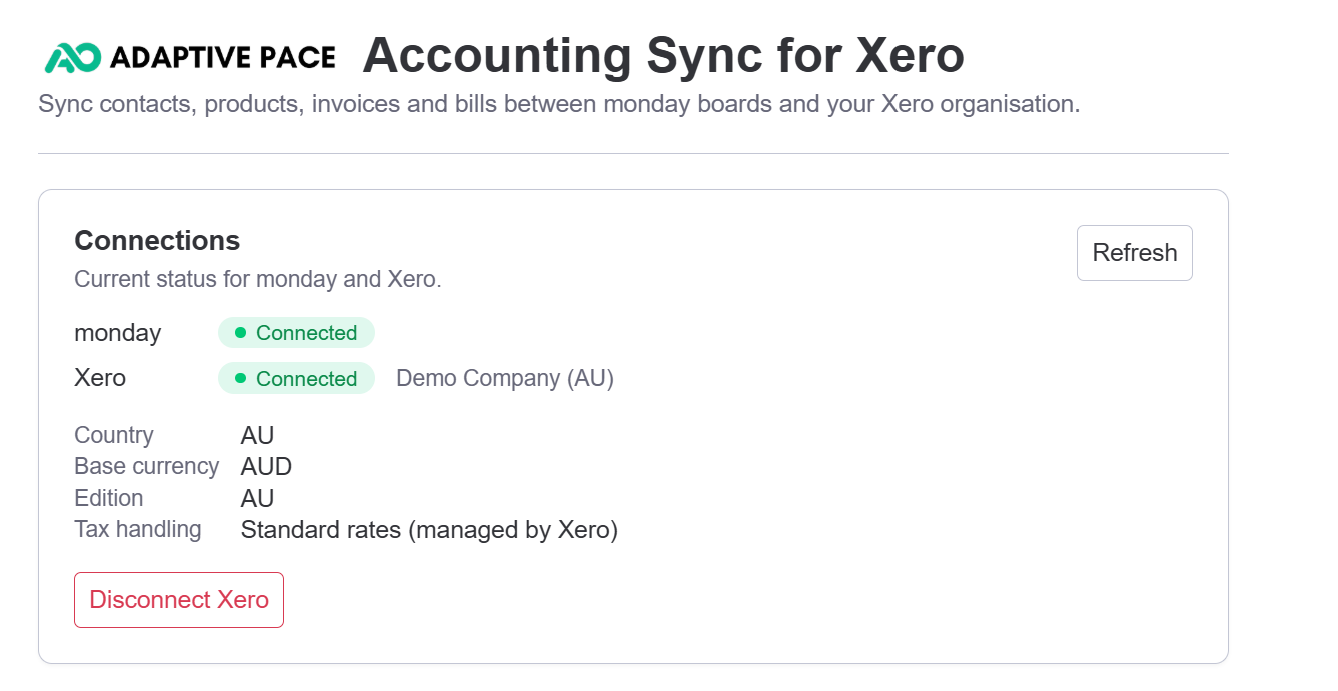
- Connect monday first. Click Connect monday. You'll be taken briefly to monday's authorisation page and straight back. This gives the app the standing permission it needs to run scheduled and live syncs in the background, even when nobody has the board open.
- Then connect Xero. Click Connect Xero and sign in to authorise access to your Xero organisation.
- When both show Connected, the four sync cards appear: Contact sync, Products & Services sync, Invoice sync, and Bill sync.
Xero connections expire from time to time. If yours does, the panel says so and shows a Reconnect Xero button — one click and a sign-in, and syncing picks up where it left off.
After Xero connects, the Connections panel shows your organisation's Country, Base currency, Edition, and Tax handling. The app detects these automatically and adapts field labels, currency, tax handling and date formatting to match your region, so there's no region setting to choose. It works with Xero's Australia, New Zealand and UK editions and the Global edition. For US and Canada organisations, contacts, invoices, bills, amounts, dates and currency sync normally, and the app shows a short note that region-specific tax isn't fully automated. The connection is never blocked.
Region labels and the tax, account and currency dropdowns are read from Xero after you connect. They appear on the first settings load once connected; if they aren't there yet, click Refresh once. Need to reconnect, or move to a different Xero organisation? See below.
Reconnecting, or changing organisation
- Reconnect Xero signs you back in to the same organisation and keeps everything — your boards, mappings and links are exactly as you left them. This is the one you want if the connection has expired.
- Disconnect Xero is for moving to a different organisation. It clears your sync setup so you can start fresh, so it asks you to confirm first. Your board data and your Xero records are never touched.
Part 2: Contact sync
Map a monday board to Xero Contacts. Do this first: invoices and bills both link their customers and suppliers back to this Contacts board.
Pick a workspace, then a board
On the Contact sync card, click Set up contact sync. The editor opens:
- Workspace: select the workspace that contains your board. The board list is filtered to it.
- monday board: pick the board whose items should sync. You have two paths here.
Option A: create a new board (the easy path)
Leave the board unselected and click Create a new board. The app builds a board in your chosen workspace with every column already created and mapped. You can save immediately without touching the mapping.
Option B: map a board you already have
Select your existing board from the dropdown. Its columns load and you map them yourself in the next step.
Switching to a different board clears the column mapping. Column IDs are board-specific, so mappings never carry across boards.
Can't see your board? Choose its workspace first — that narrows the list. If it's a board nobody has opened in a while, open it once in monday and reload this page.
Map your columns
Match your monday columns to Xero contact fields. Each dropdown only offers columns whose type fits the field (a date column can't be a Name, for instance), and no column can be mapped to two fields.
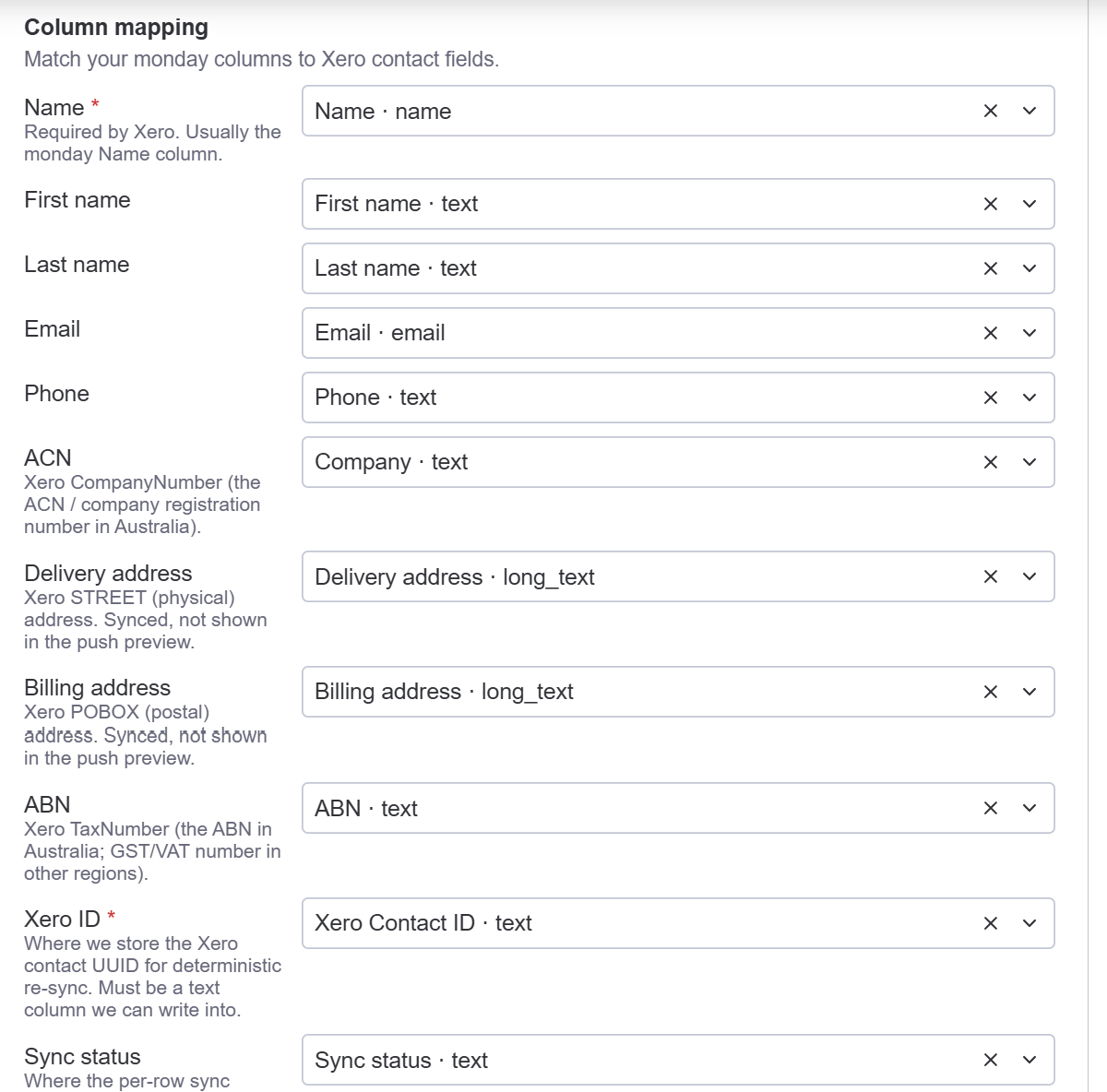
- Required: Name (Xero requires it) and Xero ID, a text column where the app stores the Xero contact ID so it keeps updating the same record instead of creating duplicates.
- Optional: First/Last name, Email, Phone, Delivery and Billing address, and your region's tax and company identifiers. These two fields are labelled to match your Xero org: ABN and ACN for Australian orgs, VAT Number and Company Number for UK orgs, or Tax Number and Company Number elsewhere.
- Sync status: where per-row results are written ("Synced to Xero", error reasons). Leave it blank and the app creates one automatically.
- Outstanding / Overdue balance: read-only columns the app fills from Xero. Never written back.
- Contact type: a read-only column showing whether Xero treats each contact as a customer, a supplier, or both. Created automatically — see below.
Missing a column? Click + Add “Email” column to this board under any unmapped field. The app creates a correctly-typed column and maps it in one click.
Contact type — telling customers and suppliers apart
When your sync brings contacts from Xero, the app adds a read-only Contact type column and keeps it up to date. Each contact shows one of:
| Value | Meaning |
|---|---|
| Customer | You have raised at least one sales invoice for them. |
| Supplier | You have at least one bill from them. |
| Customer, Supplier | Both — you buy from them and sell to them. |
| (blank) | Neither yet. See the note below — this is normal. |
Why a column rather than a setting? Xero doesn't let you tick a box marking someone a customer or a supplier — it works it out from their invoices. So there is no reliable way to filter the sync by it, and a filter would risk quietly leaving contacts off your board. Instead every contact syncs and gets labelled, and you filter or group the board by this column when you only want to look at customers. That also keeps bill sync working, since it needs suppliers on the board to link them.
Blank is normal for a new contact. Xero marks someone a Customer the moment you raise their first sales invoice, and a Supplier when you enter their first bill — so a contact you have just created is neither, and the column stays blank until you invoice them. It fills in on the next sync after that.
The column is read-only: it is filled from Xero and never sent back, so editing it on the board has no effect. It only appears for syncs that bring contacts from Xero (the Xero → monday and Create both ways directions) — a monday → Xero sync never has anything to write into it. Boards made with Create a new board include it already.
Choose the sync direction, then save
Two different things can happen in a sync, and the direction controls each one separately:
- Creating a record that exists on only one side (it gets created on the other side).
- Updating a record that's already linked on both sides, when its details differ.
Updates only ever flow one way, so there's never a conflict about which edit "wins":
| Direction | New records | Edits to a linked record |
|---|---|---|
| monday → Xero | Created in Xero from monday. | monday's values are written to Xero. Editing the contact in Xero won't change monday. |
| Xero → monday | Created in monday from Xero. | Xero's values are written to monday. Editing the item in monday won't change Xero. |
| Create both ways, update monday → Xero | Created on whichever side is missing it. | Edits flow monday → Xero only. |
| Create both ways, update Xero → monday | Created on whichever side is missing it. | Edits flow Xero → monday only. |
"Updating" means the app compares the mapped fields and writes across only the ones that differ, bringing the receiving side in line with the source. Read-only figures (outstanding/overdue balances) always come from Xero regardless of the direction you pick.
Click Save configuration. Validation runs first, and required fields or duplicate mappings are flagged inline.
Link existing records and push on demand
Two manual tools sit on the Contact sync summary. You never have to wait for a schedule.
- Match unfilled Xero IDs: if a board and your Xero org already hold the same contacts, this finds matches (by name and email) and fills in the Xero ID for rows that don't have one yet, so those contacts link instead of being created again. Preview the proposals, tick the ones you want, then apply.
- Push contacts: pick a direction, click Preview to see exactly what would be created and updated (read-only at this point), untick anything you want to hold back, then Apply.
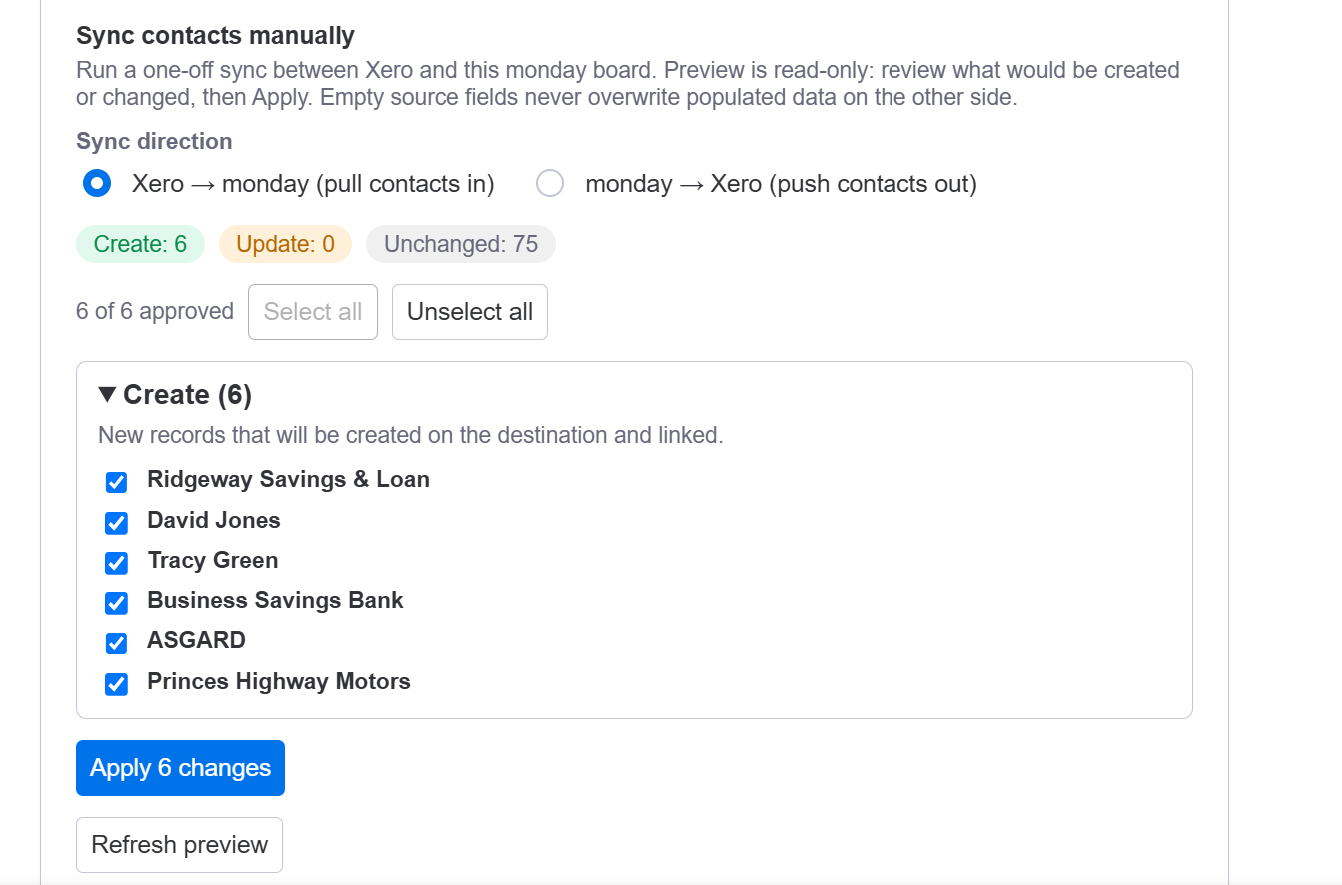
The counts at the top (Create / Update / Unchanged) tell you the shape of the run before you commit to it, and every row has a tick box so you can hold anything back. Before you Apply, the panel also tells you roughly how long the run will take.
Some rows may be set aside rather than synced — a contact with no name, two rows with the same name, or one that looks like it is already on your board. The preview counts them and says why, so you can see the whole picture before anything happens.
The app will not create a second copy of someone already on your board. If it spots a likely match that just isn't linked yet, it holds off and tells you. Run Match unfilled Xero IDs above to link them, and syncing carries on normally from there.
Previews are always read-only — nothing changes in monday or Xero until you click Apply. Leaving rows unticked is safe, and the panel tells you what happens to anything you skip. Re-running an Apply never creates duplicates either; the app re-checks against your current data before it writes.
Syncing a very large number of records at once? The app paces itself to stay within Xero's limits and picks up the remainder automatically — there is never anything to re-run by hand.
Part 3: Products & Services sync
Map a monday board to your Xero Products & Services (items). Set this up before Invoices if you want invoice lines to reference Xero product codes.
Set up product sync
On the Products & Services card, click Set up product sync. The flow is the same as Contact sync: pick a workspace, then Create a new board for a fully pre-mapped board or select an existing one, then map columns.
Products sync on the schedule only — there is no live sync for this card. Xero doesn't publish a real-time feed for Products & Services, so the Products card has a Scheduled sync row but no Live sync toggle. Product changes reach the other side on the next daily run, or immediately when you use Push products below. See How fresh is my data?
- Required: Code (the item code that matches a product on both sides) and Xero Item ID (a text column the app writes the Xero item's ID into). Products are matched by Code, so it's the key that links the two systems.
- Optional: Name, Description, sales and purchase price, sales and purchase account codes, tax types, and quantity on hand (read-only from Xero for tracked items).
- Sync direction works exactly as it does for contacts (step 4): creation can be two-way, updates flow one way only.
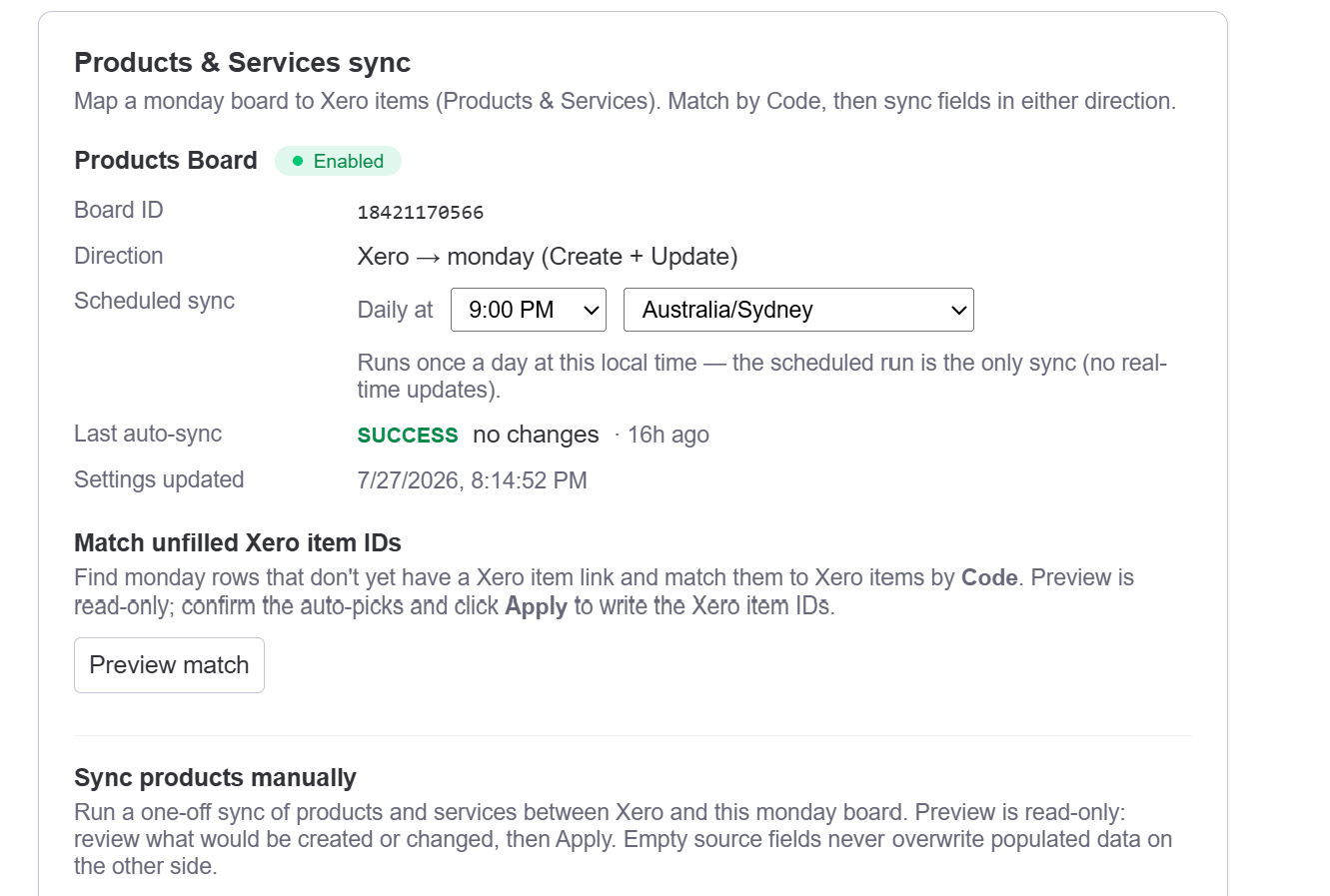
The same manual tools are available on the summary: Match unfilled Xero IDs (matches by Code and fills the Xero Item ID for unlinked rows) and Push products with the same read-only Preview then Apply.
Why do this before invoices? A scaffolded invoice board links each line's product back to this Products board through a connect column, so the Products board needs to exist first. If your invoices only ever use a single amount line (no per-product lines), a Products sync is optional.
Part 4: Live sync and schedules
Two things control when a sync runs: a daily schedule (every card has one) and live sync (contacts, invoices and bills). Set them on the card; changes save immediately.
How fresh is my data?
The short version: live sync does the real-time work; the daily schedule is a safety net that catches anything a webhook missed. Products and the Overdue status are the two things that have no real-time path — for those, the schedule (or a manual refresh) is what updates them.
Turn on live sync (optional)
On the Contact, Invoice and Bill cards, the Live sync row shows ON or OFF with a Turn on / Turn off button. Live sync is webhook-driven and near real-time, so changes apply within seconds instead of waiting for the schedule.
- Contacts: board edits and Xero changes propagate to linked records as they happen.
- Invoices: when an invoice is paid, voided or part-paid in Xero, the board updates within seconds. One exception: Overdue is based on the due date passing, which Xero sends no event for — see the note below.
- Bills: bill changes in Xero reach the board near real-time.
- Products & Services: no live sync — Xero publishes no real-time feed for items, so this card has no Live sync row at all. Covered in Part 3.
Live sync is opt-in and off by default. The scheduled sync below keeps running either way as the safety net, so nothing is missed if a webhook is dropped.
About Overdue. An invoice becomes overdue because a date passed, not because anything changed in Xero — so there is no event to send, and no live sync can catch it. The daily scheduled run is what flips the label, which means it can appear up to 24 hours after the due date. If you need it immediately, an admin can click Refresh Xero statuses on the Invoice card, or Refresh now on the Xero dashboard. Every other payment status (paid, part-paid, voided) is live.
Set the daily sync time
The Scheduled sync row sets when the daily run happens. Pick the hour and the timezone — for example "Daily at 6:00 AM, Australia/Sydney". That's the whole control; every sync runs once a day.
Pick a time that suits the sync. A quiet hour (early morning) keeps board activity out of your team's way; an hour just before you start work means the board is current when you open it.
You start with a time already chosen. Every sync in your account begins on the same daily time, picked for you when the app is installed, so all four syncs land together and your board is consistent as of one moment. (Different accounts get different times — that's deliberate, it spreads the load so everyone's sync runs promptly.) Change any card's time whenever you like; each card is independent, so you can move Bills to the evening and leave Contacts in the morning.
Why once a day?
Real-time freshness is live sync's job — it applies changes within seconds. The scheduled run exists as a safety net underneath it: it re-checks everything, so a dropped webhook or a change made while a connection was down still gets picked up. Running that full re-check more often than daily would add load without adding freshness, because live sync has already handled anything that actually changed.
You never have to wait for it. Every card has an on-demand action (Push contacts, Push products, Refresh Xero statuses, bills Preview → Apply) that runs the same sync immediately.
What the time actually means
- The hour you pick is the earliest the run happens, not an exact appointment. "Daily at 6:00 AM" means once that day, not before 6 AM — in practice usually within the hour, occasionally later if the system is busy.
- This is deliberate: a run that can't happen at 6:00 sharp still happens later that day rather than being skipped, so you never lose a day.
- If a run fails (a temporary connection or rate-limit problem), it retries later the same day rather than waiting until tomorrow.
- Changing the time takes effect the same day. Move a sync from 6 AM to 4 PM and it will run at 4 PM today, even if it already ran this morning.
The Last auto-sync row shows the most recent run's outcome (SUCCESS / PARTIAL / ERROR), what changed, and when.
Part 5: Invoice sync
Invoice sync has two halves: an automation that creates Xero draft invoices from board items, and a status sync that writes Xero payment status back to the board.
Configure the invoice sync
Prerequisite: set up Contact sync and Products & Services sync first. A new invoice board links each item's Customer to your Contacts board and each line's Product to your Products board through connect columns, so those boards must already exist.
On the Invoice sync card, click Set up invoice sync. Same flow: workspace, then a board (or Create a new board for a fully pre-mapped one), then:
- Required columns: Customer (a connect-board column linking to your Contacts board, or a plain text name), Amount (number column), and Invoice date (date column).
- Optional columns: Due date, Reference, Line description, Sync status description, Currency, and Attachments.
- Currency (multi-currency): map an optional Currency column to create an invoice in a currency other than your org's base currency, one per item (for example USD or EUR; the currency must be enabled in Xero). Boards created with Create a new board include a Currency column by default. Leave it blank and the invoice uses your org's base currency.
- Currency, Tax type, Account code and Product code each accept a text, status or dropdown column. A dropdown is usually easiest — your team picks from a list instead of typing.
- Xero defaults: Account code and Tax type are dropdowns populated from your connected org's own chart of accounts and tax rates. Tax type includes a Use account default option, which leaves the rate to Xero (it applies the account's own default). You also choose the tax treatment (Exclusive / Inclusive / No tax).
- Due dates: if the Xero customer has payment terms set, the invoice due date follows them. The due-date offset (days) setting is a fallback, used only when the customer has no terms and no Due date column is mapped.
- Line items: Single line (one line from the Amount column) or One line per subitem, where each subitem becomes an invoice line with its own description, quantity, unit price and optional product code.
Attachments
Map a monday File column and its files upload onto the Xero invoice when it's created (up to 10 files per invoice, each up to 25 MB). Xero accepts these file types:
bmp · csv · doc · docx · eml · gif · jfif · jpeg · jpg · keynote · msg · numbers · odf · ods · odt · pages · pdf · png · ppt · pptx · rar · rtf · tif · tiff · txt · xls · xlsx · zip
Anything outside that list (for example SVG, HEIC, WEBP, or HTML), plus empty files, oversized files, and anything past the 10-file limit, is skipped. When that happens the app posts a comment on the item listing the files it skipped and why, so nothing fails silently.
One invoice sync per board. If a board already has one, edit that config instead of adding another. The Tax type and Account code dropdowns load from Xero after you connect; if they look empty, refresh the settings once. (Attachments need a one-time Xero reconnect if your org connected before the attachments permission was added.)
Add the invoice automation
Invoices are created by a monday automation, not from the Settings card. On your board, add an automation with the recipe:
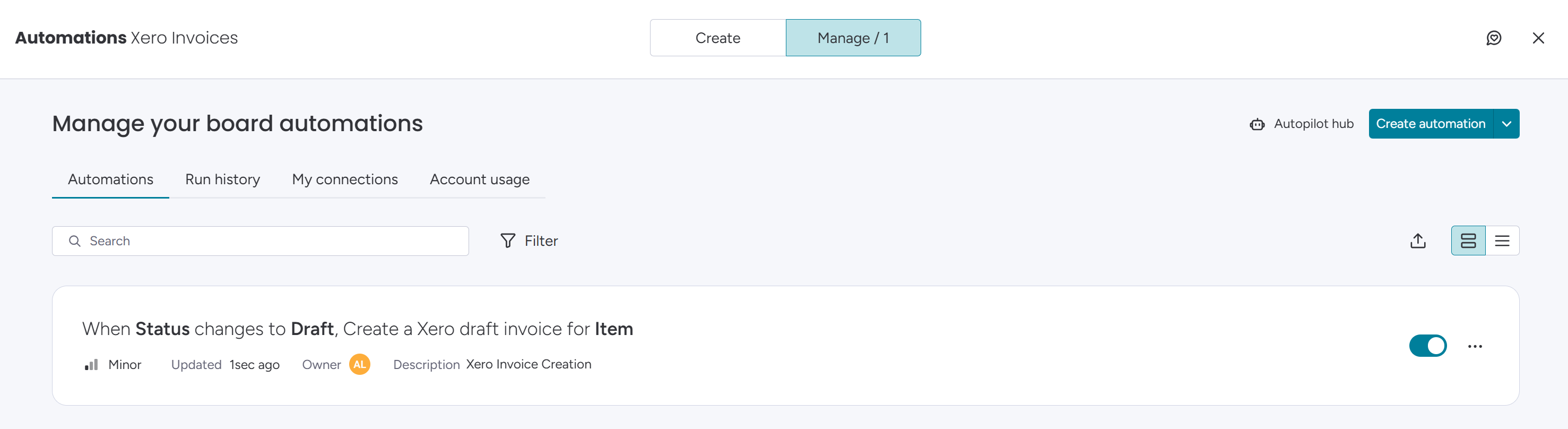
“When Status changes to Draft, Create a Xero draft invoice for Item.”
When an item hits the trigger status, the app creates a Xero draft invoice for it. Nothing is sent to a customer until you review and approve it in Xero. Re-triggering the same item updates the existing draft; it never creates a duplicate.
The invoice Status column, explained
A new invoice board includes a colour-coded Status column that the app owns and fills in for you. It's the at-a-glance signal you can filter and build automations on. You don't map it and shouldn't rename its labels; the app keeps it in step with Xero. A second text column, Sync Status Description, carries the detail (for example "Paid INV-0001" or "Error: customer not linked").
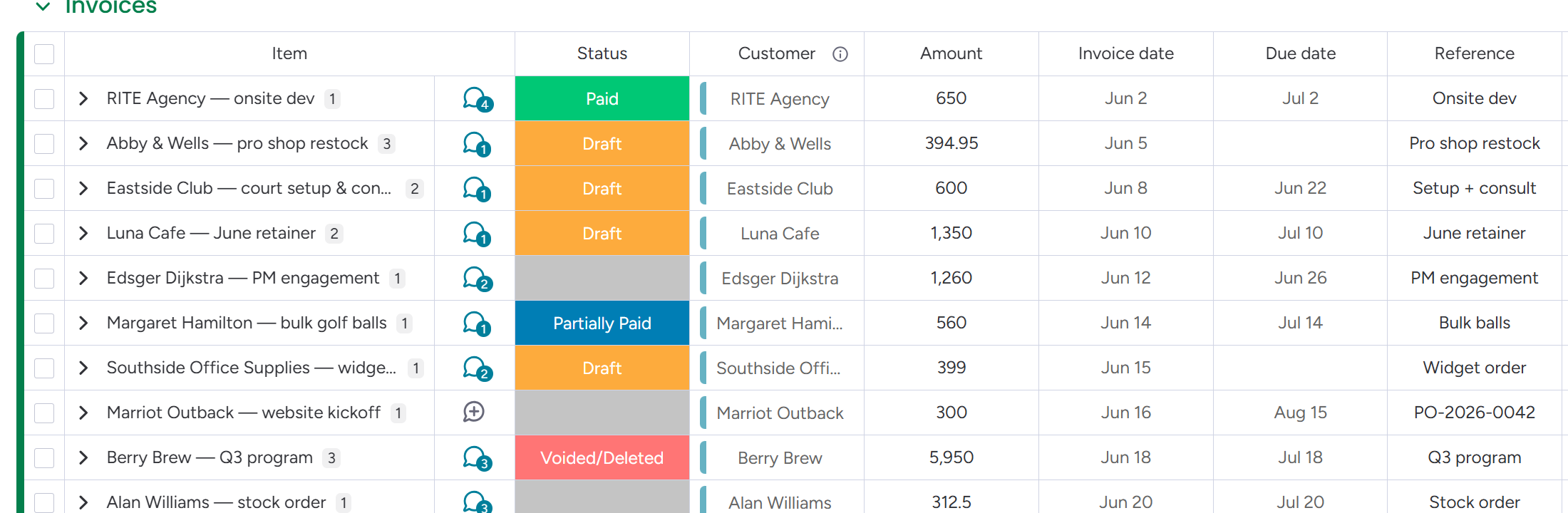
Each label means:
| Status | What it means |
|---|---|
| Blank | Not synced yet. No invoice has been created for this item, or the app intentionally left it alone. |
| Draft | A draft invoice exists in Xero. Freshly created invoices start here (awaiting approval also shows as Draft). |
| Awaiting Payment | The invoice has been approved in Xero and is unpaid, but not yet overdue. |
| Partially Paid | Approved and part-paid, with a balance still owing and not yet overdue. |
| Overdue | Approved, still owing, and past its due date. Date-driven rather than a change in Xero, so it isn't instant — see About Overdue in step 7. |
| Paid | Fully paid in Xero. |
| Voided/Deleted | The invoice was voided or deleted in Xero. The description column says which. |
| Error | The item couldn't be turned into an invoice (for example the customer isn't linked or no account code is set). The Sync Status Description spells out the reason so you can fix the data; it resyncs automatically once fixed. |
If you bring your own invoice board instead of creating one, add a status column named "Status" for these colour-coded labels. Without it, the app still writes the text description, just not the coloured label.
Payment status flows back, and the dashboard
Once an invoice exists, its Xero payment state is written back onto the board automatically (the Status column above plus an update timeline on the item).
- Turn on Live sync (step 7) for paid, part-paid and voided updates within seconds. This is the main path.
- Status refresh also runs on its own daily schedule as the safety net. Set its hour and timezone on the card like any other schedule (step 8).
- Refresh Xero statuses runs the same refresh on demand — use it when you don't want to wait, most commonly to bring Overdue forward. It is Xero → monday only and never creates or changes anything in Xero.
For a portfolio view of what customers owe you, use the Xero dashboard: outstanding, overdue, aged buckets and most-overdue invoices, filterable by customer and due date. If you created your invoices board with Create a new board, a Xero dashboard tab is already on the board. On a board you mapped yourself, add it as a board view, or add the widget to any monday dashboard.
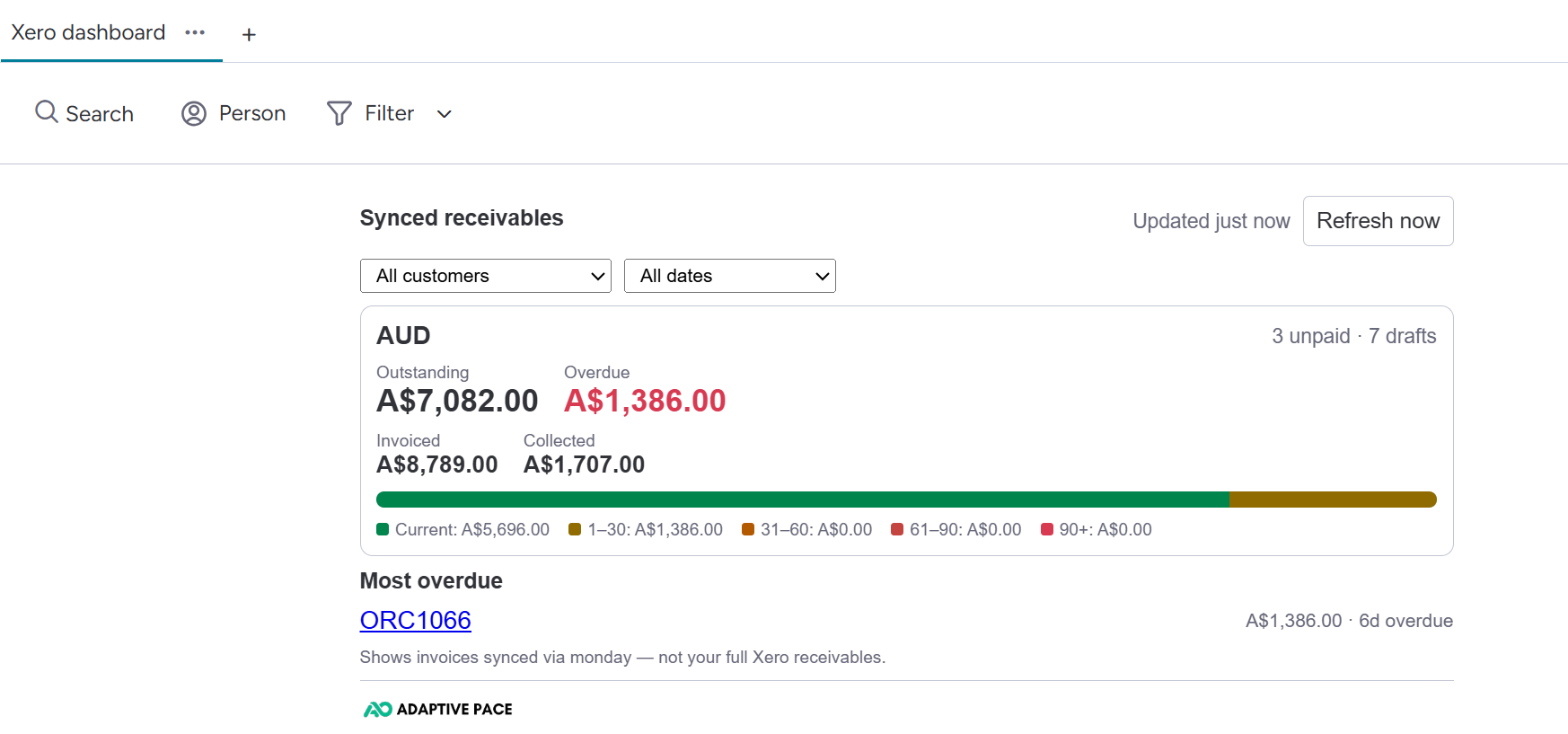
The dashboard's overdue figure and aged buckets follow the same daily cadence as the Overdue status, for the same reason. The panel shows when it was last updated, and admins get a Refresh now button that recalculates on the spot.
Part 6: Bill sync (Xero → monday)
Mirror your Xero accounts-payable bills onto a board: one item per bill, one subitem per line, with suppliers linked to your Contacts board.
Set up and run the bill sync
Prerequisite: set up Contact sync first. Each bill's supplier links back to your Contacts board through a connect column. (Products aren't needed for bills.)
On the Bill sync card, click set up, pick or create a board, and choose the History setting: All history, or only bills since a date you pick. Each bill becomes a board item named after its supplier and reference — for example “Acme Ltd - PO-5010”. Where a bill is missing one of those, the app names it from whatever it does have, so every row is still recognisable.
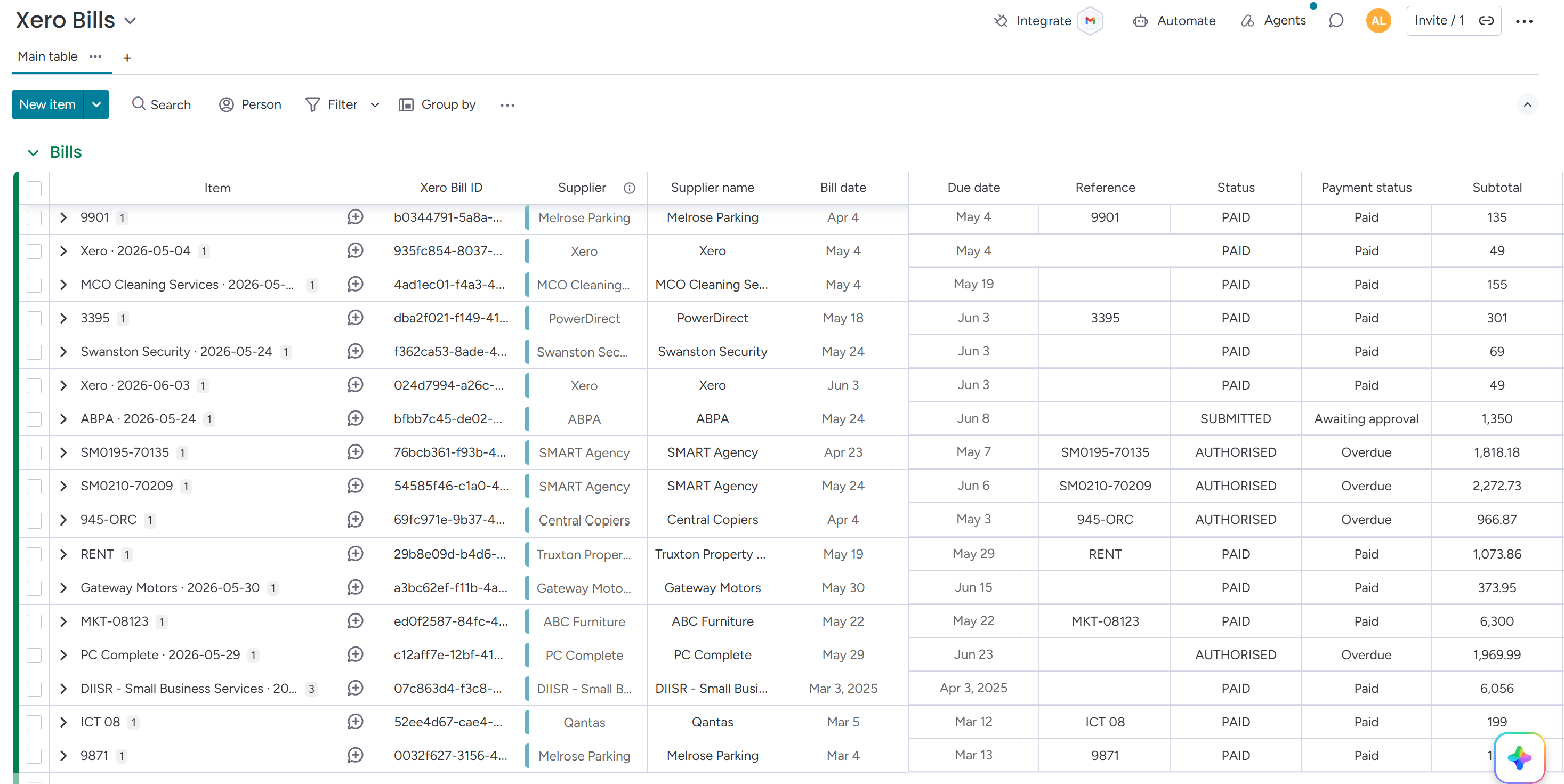
- Preview changes shows what the sync would write to the board (creates, updates and flags, with a skip-reason breakdown; draft bills are excluded until approved). Read-only.
- Apply commits those changes. It runs in batches with a live Applying N of M bills progress indicator, handles large volumes without timing out, and is safe to re-run; applying again never creates duplicates. The scheduled sync then keeps the board current incrementally, and Live sync makes Xero bill changes land near real-time.
Bill sync is strictly one-way: the app never writes bills back to Xero. Board rows you archive as housekeeping aren't re-created (except a still-unpaid bill whose row went missing). A supplier links automatically once that contact exists on your Contacts board; until then the bill shows the supplier name as text and links itself on a later run.
Your trial and plan
What the free trial includes, what changes when it ends, and how to pick up where you left off.
During the trial
You get everything. No feature is held back and nothing is capped — contacts, products, invoices, bills, live sync, the dashboard and every manual push all work exactly as they will on a paid plan. Set the whole thing up and run it against your real Xero organisation; that's the point of the trial.
The Settings panel shows how long is left (“12 days left in your free trial”) so you're never surprised.
When a trial or plan ends
Syncing pauses. It is deliberately the gentlest possible stop:
| What happens | What doesn't |
|---|---|
| New and scheduled syncs stop running, and the panel shows “Syncing is paused”. | Nothing is deleted. Every board item, every Xero record, and all your column mappings and settings stay exactly as they are. |
| Manual pushes and refreshes are unavailable until a plan is chosen. | Your Xero connection and board setup are kept, so there is nothing to rebuild. |
Nothing you have already synced is touched. Data that reached your boards or your Xero organisation is yours; pausing only stops new syncing. The same is true if you uninstall — see Editing and deleting.
Resuming
Choose a plan from the app's listing in the monday marketplace. Syncing resumes on the next scheduled run, and you can start it immediately with any card's manual action (Push contacts, Refresh Xero statuses, bills Preview → Apply).
Anything that changed in Xero while syncing was paused is picked up on that first run — the scheduled sync re-checks both sides rather than only looking at what changed since it last ran, so there is no gap to backfill by hand.
Who can change the plan
Plan changes are a monday account-level action, so a monday admin handles them from the app's listing. Other members keep read-only access to the cards throughout.
Part 7: Editing and deleting a sync
Every sync card has Edit and Delete at the bottom of its summary.
Edit or remove a configuration
Edit
- Edit reopens the full editor with your current settings loaded. Change mappings, direction, defaults or line mode and save again.
- Fixing a wrong mapping takes effect on the next sync. Already-synced records aren't retroactively rewritten until they next change.
- Picking a different board resets the column mapping, and you remap on the new board.
Delete
- Delete uses a two-step confirm: click it, then Confirm delete (or Cancel).
- Deleting a sync removes the configuration only. Items already on your boards and records already in Xero are left exactly as they are.
- Deleting a bill sync also clears its sync history, so setting it up again later starts a clean backfill.
Uninstalling the app entirely purges all stored tokens and configuration. Data already written into your boards and your Xero organisation remains yours, untouched.
Part 8: If something looks wrong
The app tells you what it is doing and what it needs. Here is what the occasional message means — and why none of them puts your data at risk.
Common messages
“Your monday session has expired”
monday signs you in to the Settings panel for a short while at a time. If you have had the panel open a long time, just reload the page — nothing is lost, and no setting is left half-saved.
A sync didn't finish
Large syncs run in batches, and the app always tells you how far it got — whether nothing was applied, or how many records were done. Either way it is safe to run it again: the app re-checks everything against your current data first, so nothing is ever duplicated or applied twice.
A row on the board shows an error
Problems with a single record are reported on the row itself, in its Sync status column (or Status and Sync Status Description for invoices). These are almost always small data fixes — a missing customer link, or a contact with no name. Fix it on the board and the row syncs itself on the next run; there is nothing to re-trigger.
Nothing is syncing at all
The Settings panel will say which of these it is:
- Xero needs reconnecting — click Reconnect Xero and sign in again (Part 1).
- Syncing is paused — the trial or plan has ended. Choose a plan and it resumes; see your trial and plan.
- The sync shows Disabled — switch it back on from the card.
Checking when a sync last ran
Every card has a Last auto-sync row showing the most recent run and how it went. And you never have to wait for the schedule — each card has a manual action that runs the same sync straight away.
Still stuck? Tell us the board, the sync type and roughly when you noticed — that is enough for us to trace it. Our address is at the bottom of this page.